How to Configure Multi-Factor Authentication (MFA)

This guide will cover the necessary steps and screens involved in configuring Multi-Factor Authentication (MFA) within the Data8 Online Portal. 

MFA increases the security of your system by requiring users to provide two or more verification methods when you are logging in. This ensures that your sensitive data is protected and minimises the risk of unauthorised access.

By following this guide, you will improve your system’s security and ensure that users are better protected against unauthorised access.

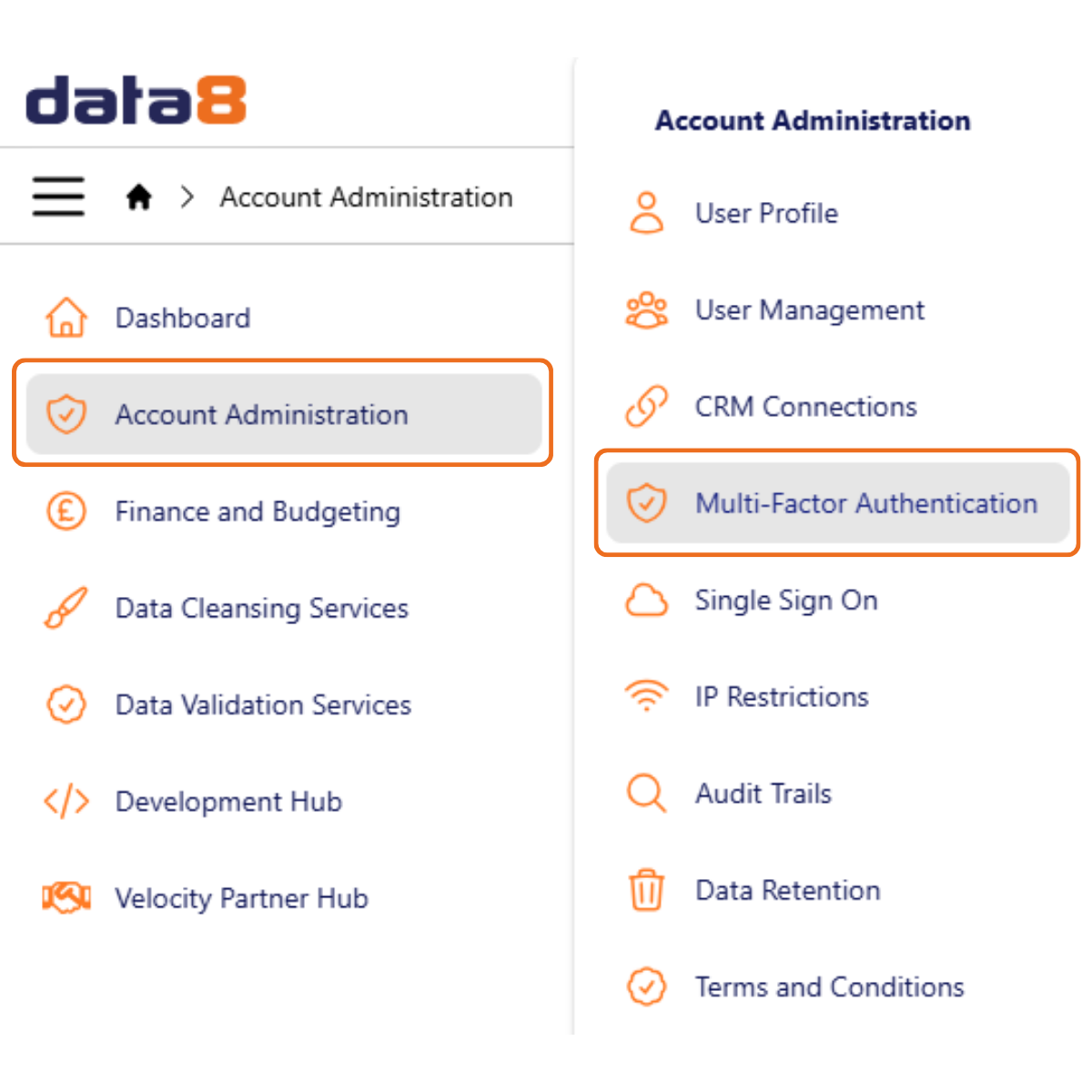
To open the Multi-Factor Authentication screen, click the Account Administration tab, then Multi-Factor Authentication in the menu on the top left of the page.  

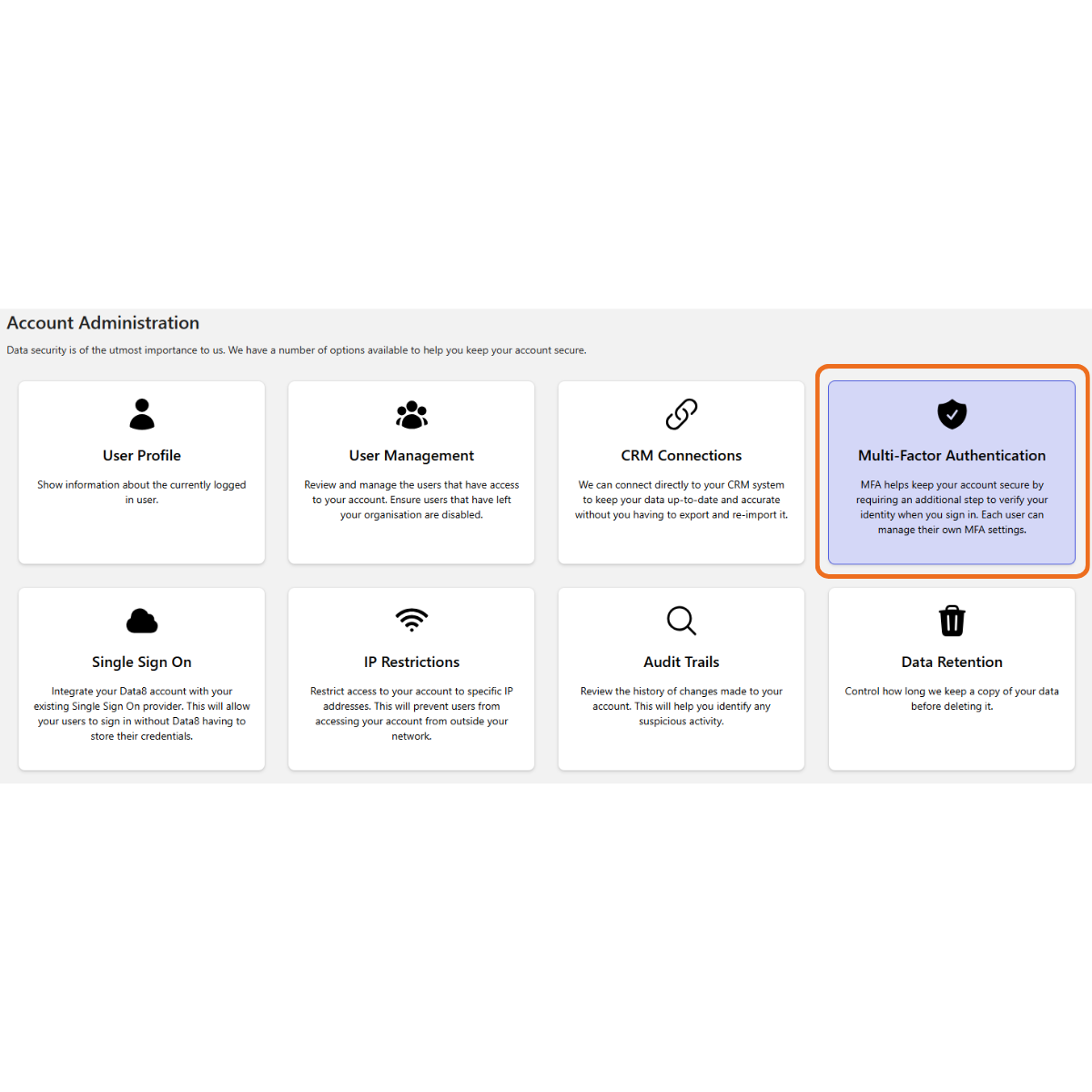
You can also open the Multi-Factor Authentication screen, by clicking the Multi-Factor Authentication button on the Account Administration screen. 

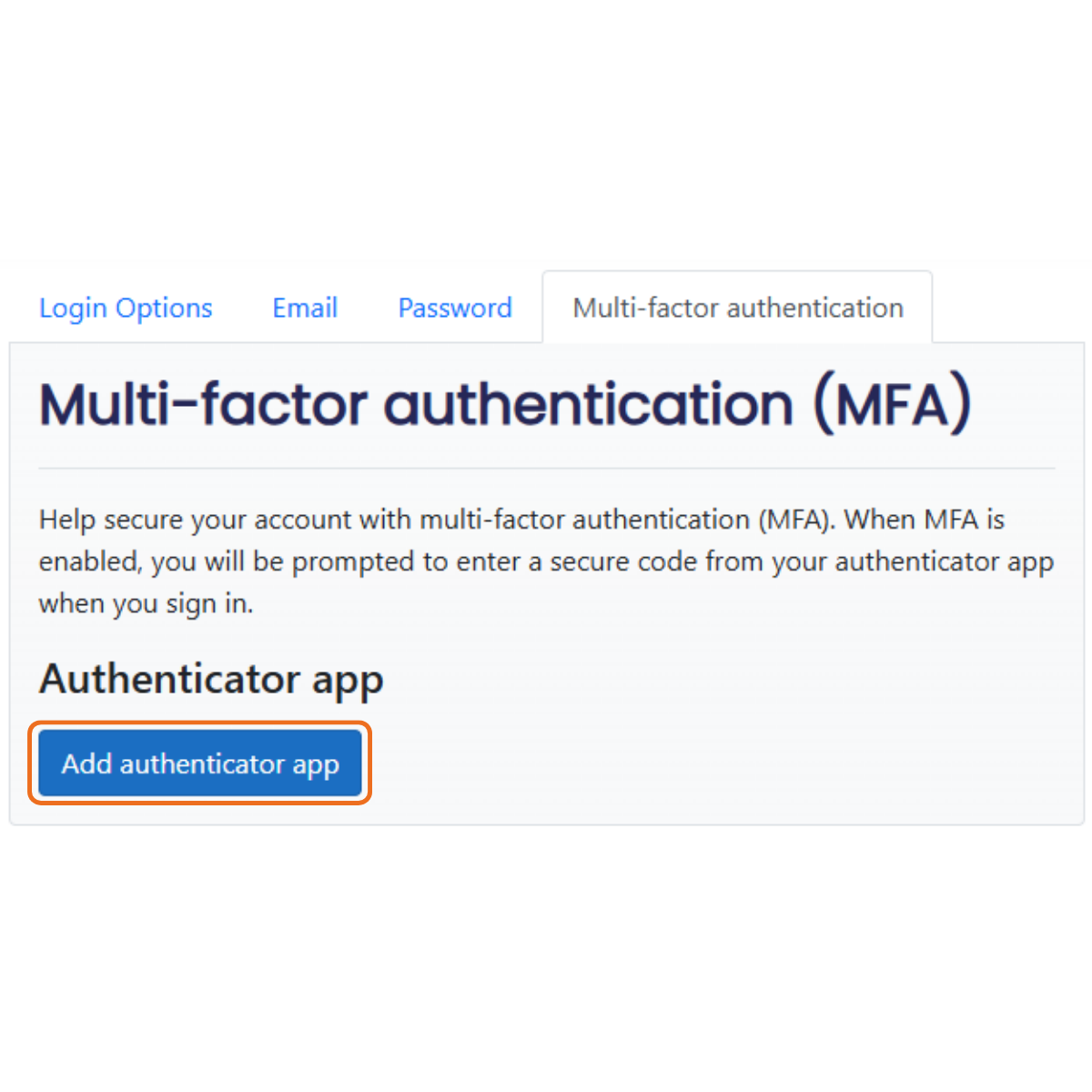
Click Add authenticator app to open the Configure authenticator app screen. 

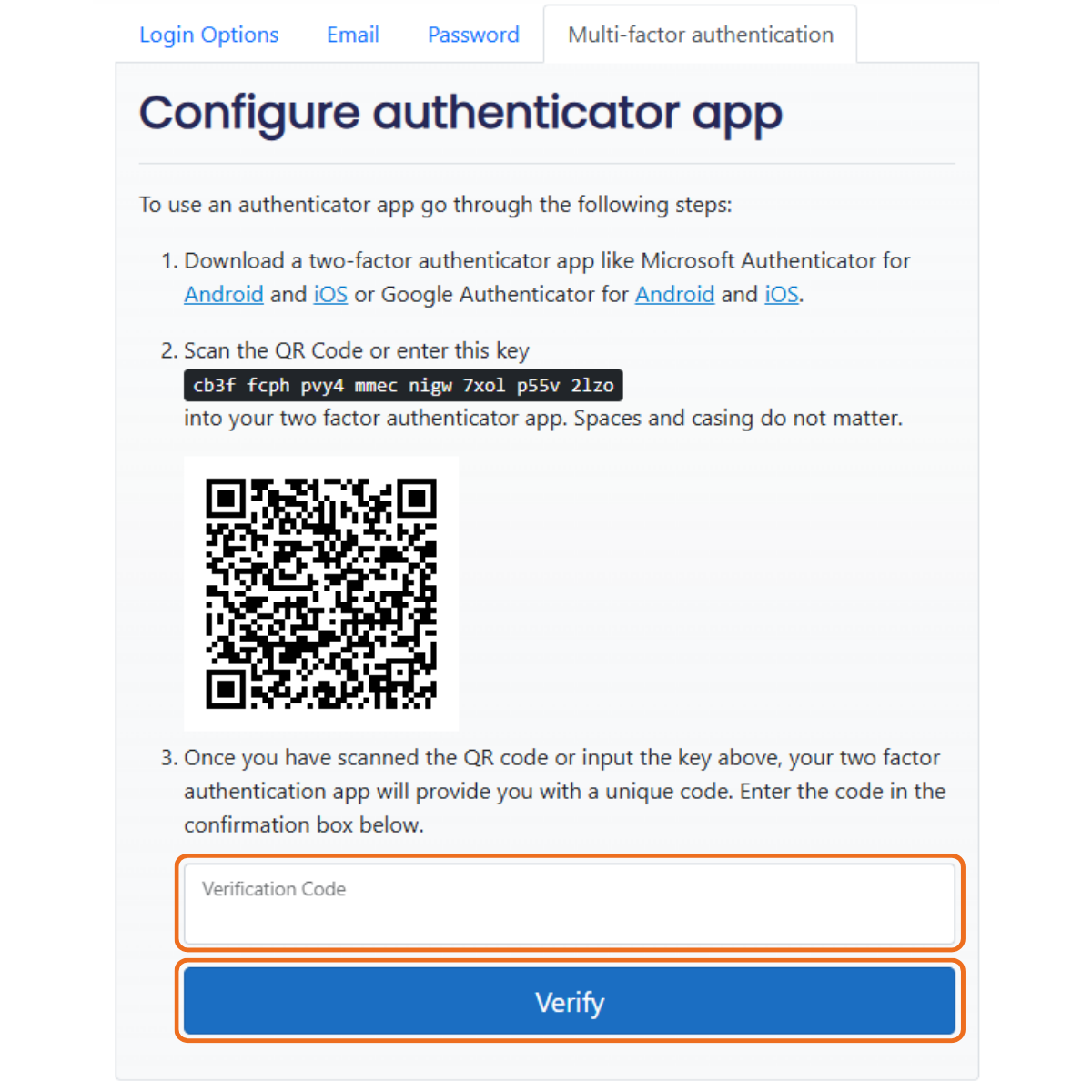
The Configure authenticator app screen displays the three steps you must take to set up Multi-Factor Authentication:

  1. Download the Microsoft Authenticator App 
  2. Scan the QR code (using the app) 
  3. Enter the verification code


Once you have completed these steps, click Verify. 

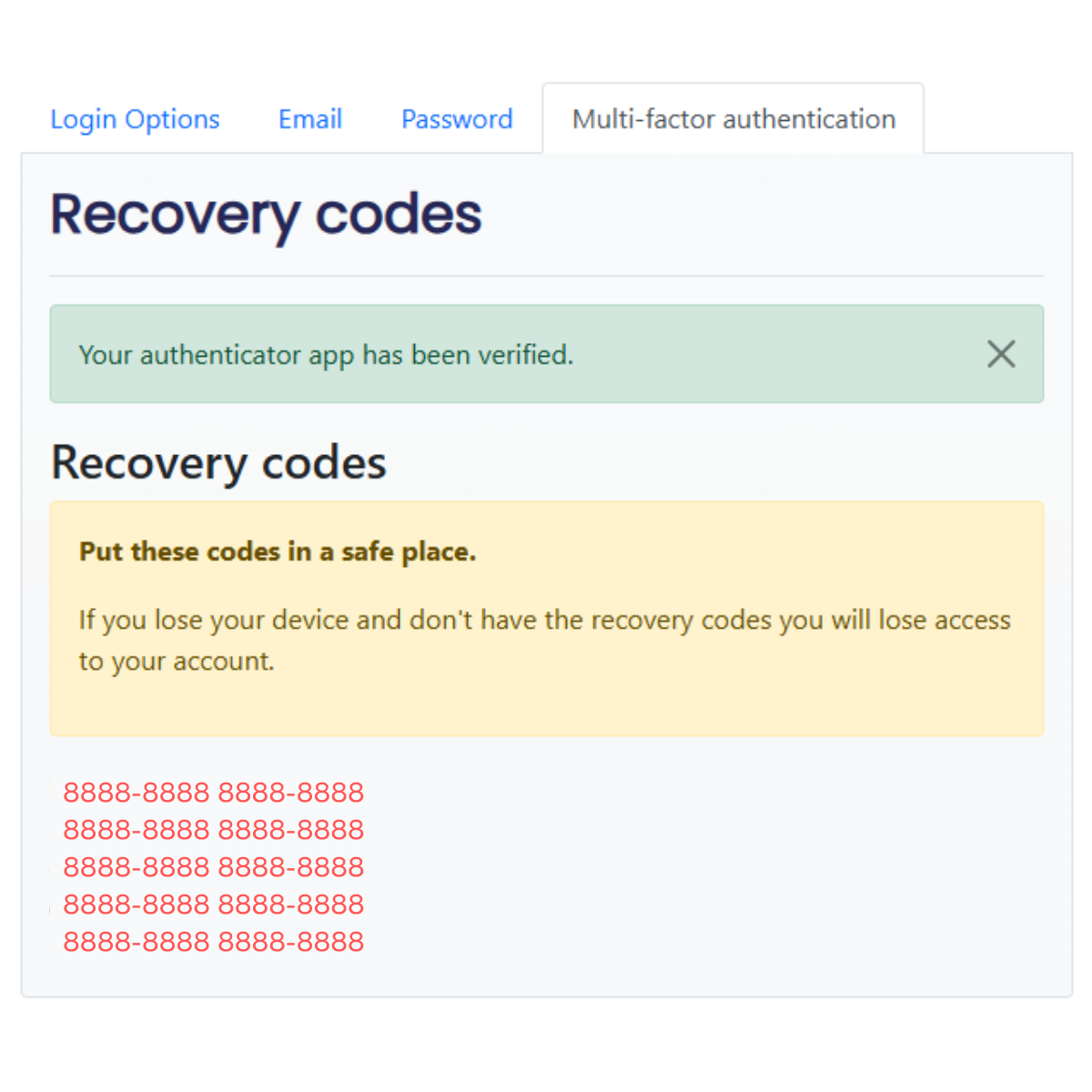
The Recovery Codes screen displays ten unique codes to recover your account if you ever lose access. 

Join the Conversation

Receive the latest news, views and hot topics directly in your inbox! Sign up below

Follow us on social media

Data8
Privacy Overview

This website uses cookies so that we can provide you with the best user experience possible. Cookie information is stored in your browser and performs functions such as recognising you when you return to our website and helping our team to understand which sections of the website you find most interesting and useful.