How to Manage User Profiles

This guide will cover the necessary steps and screens involved in managing user profiles within the Data8 Online Portal, specifically focusing on accessing and updating your user profile. 

The User Profile is where key personal and account information is stored, ensuring your account is secure and up to date. This guide will cover two important aspects of user
management:

1. Editing Your Profile

Understand how to update your personal details, including your contact information, ensuring that your account contains correct and current data.

2. Changing Your Password

Learn how to update your password securely, ensuring your account is protected.

By following this guide, you can maintain your account information effectively, ensuring smooth access to the system and safeguarding your personal data. This proactive management of your User Profile is vital for both security and the overall user experience.

Accessing Your Profile

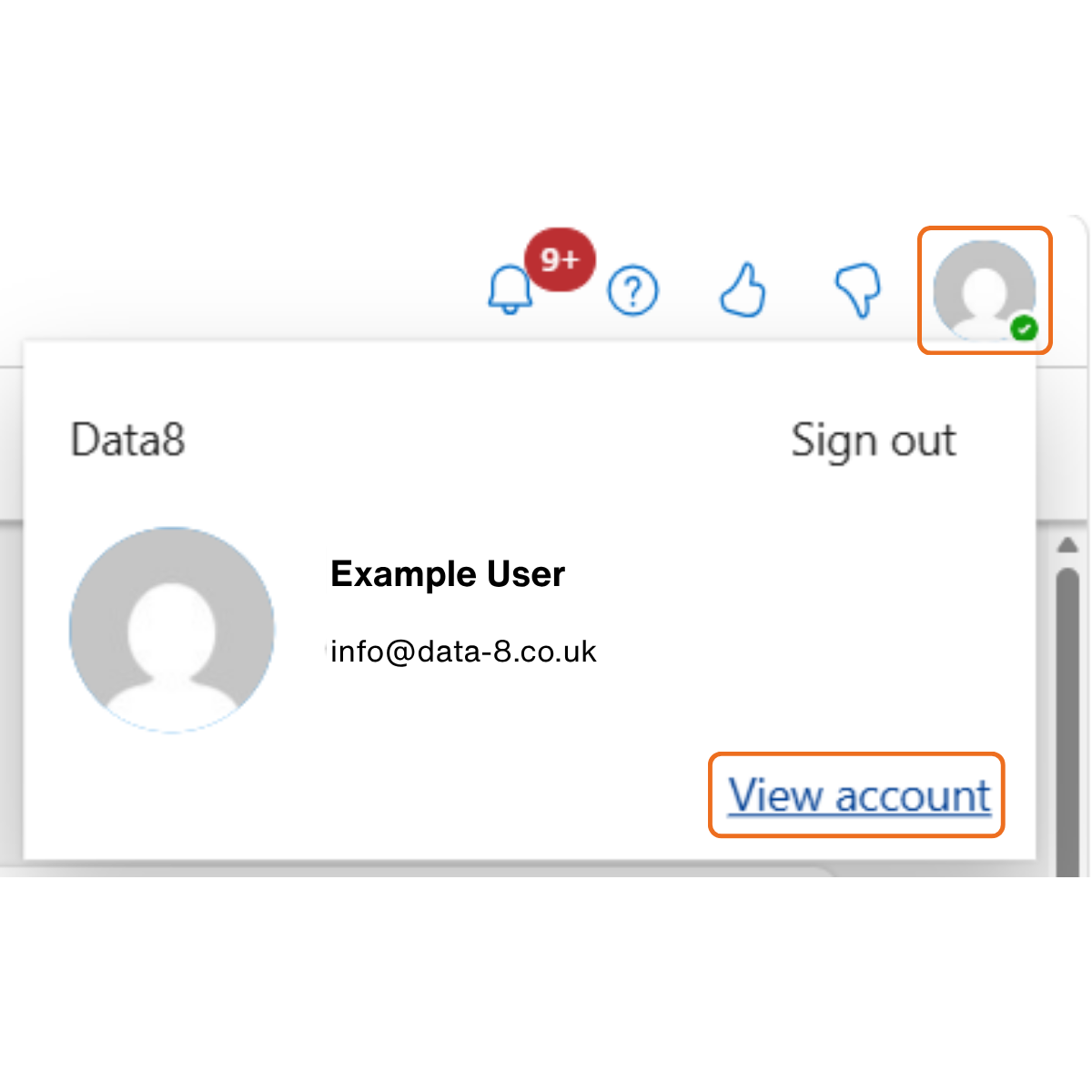
To view your profile, click the user icon located in the top right corner of the screen. 


A pop-up window will be displayed, showing:

  • Your company name
  • Your name
  • Email address
  • Sign out link
  • View account link


Click View account to open the User Profile screen.

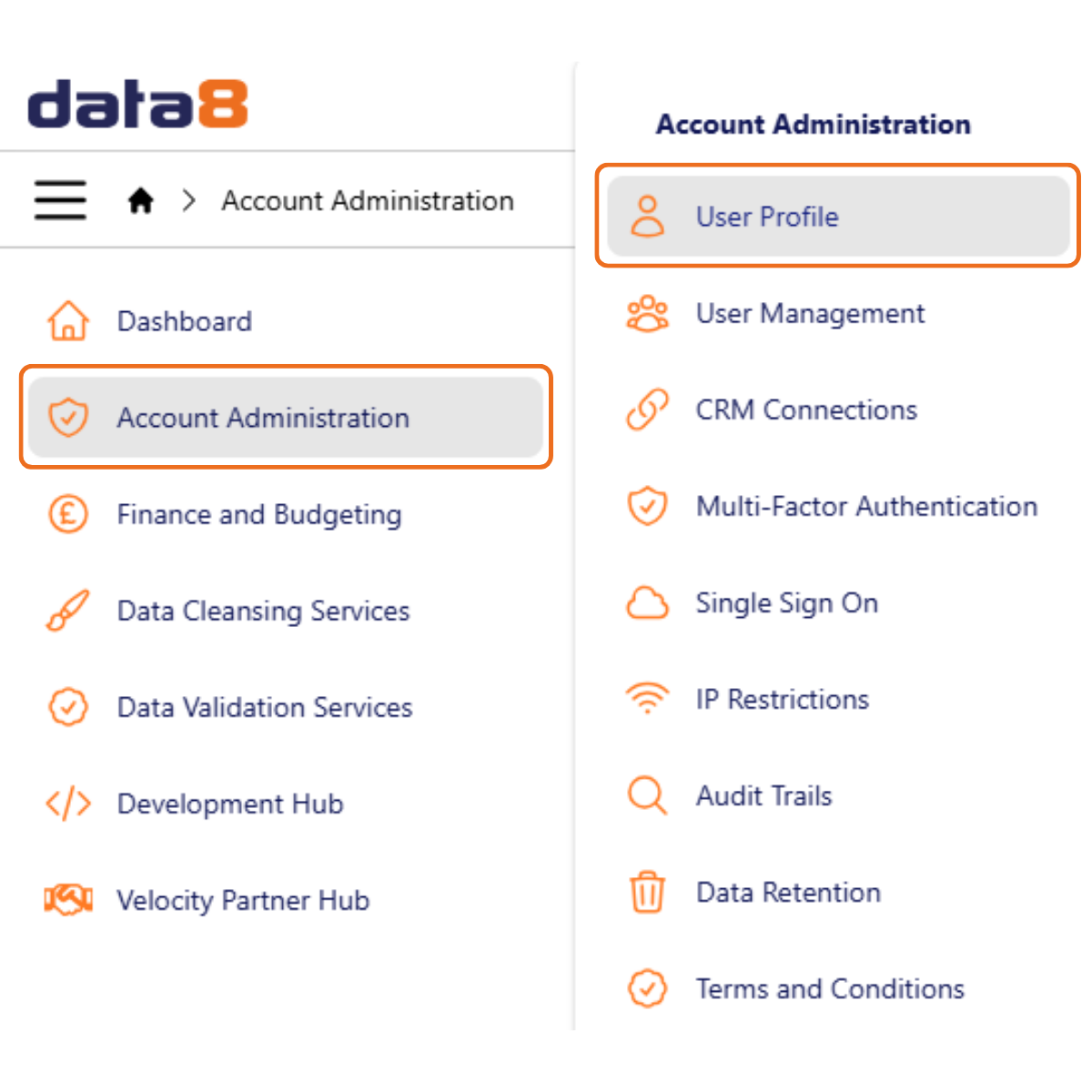
You can also access the User Profile screen by clicking the Account Administration tab, then the User Profile tab in the menu on the top left hand side of the page. 

Viewing Your Profile

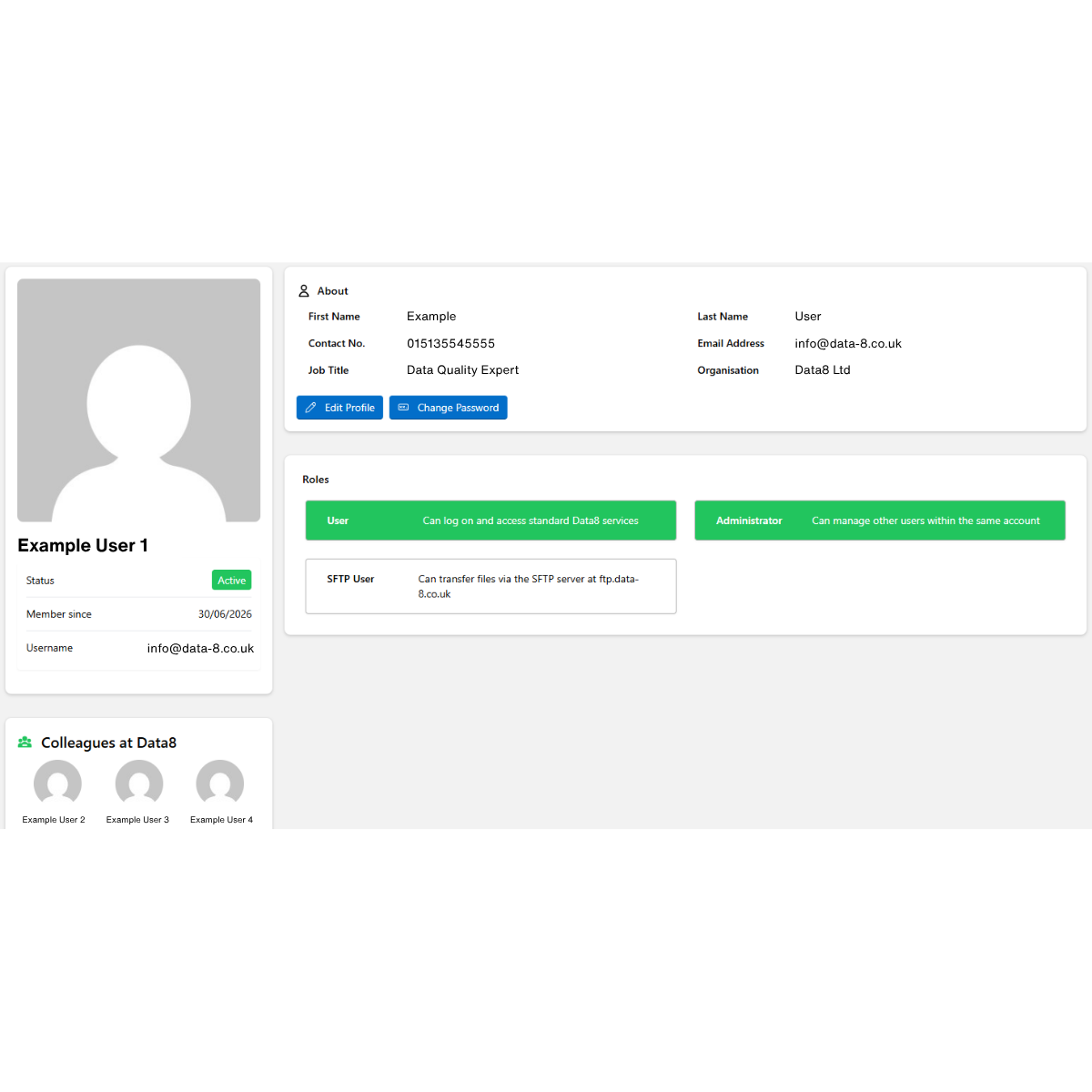
The User Profile screen displays four widgets:

  • Profile
  • About
  • Colleagues
  • Roles

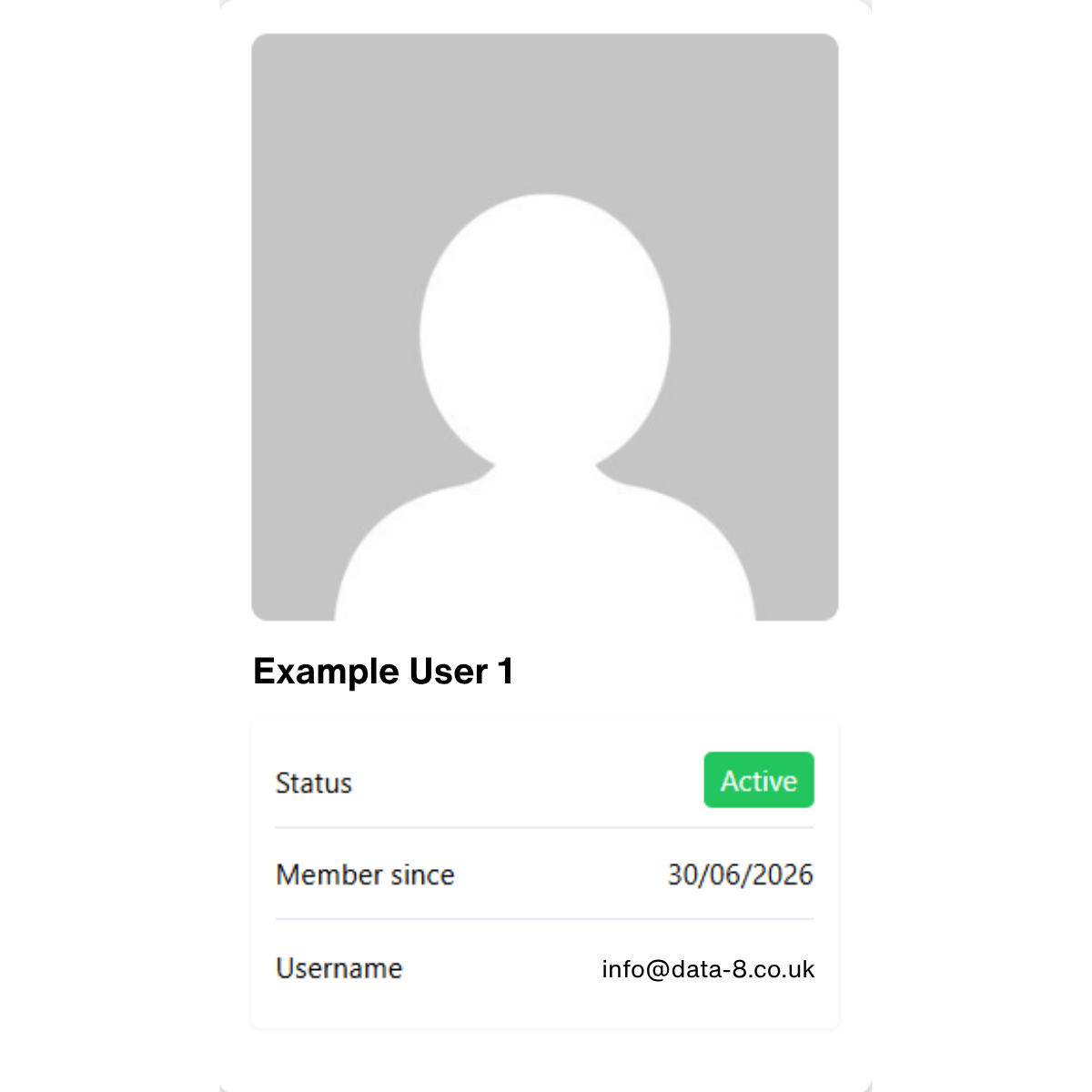
The Profile widget displays the following information:

  • Your profile picture (if uploaded)
  • Your name
  • Your account status
  • The start date of your access
  • Your username (N.B. this is usually your email address and cannot be changed)

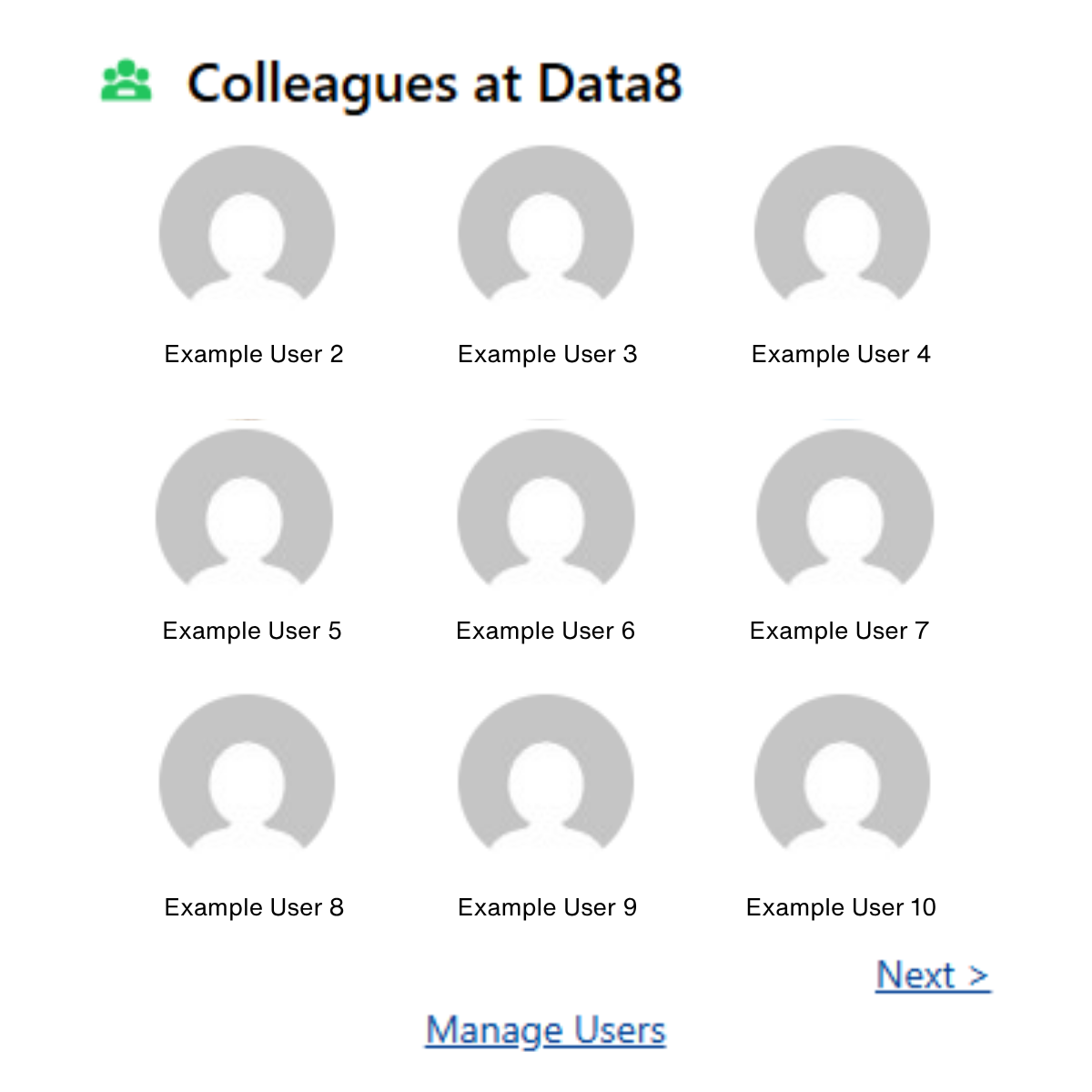
The Colleagues widget displays all of the users from your organisation with access to the Data8 Online Portal. 

N.B: If you are an administrator you will be able to see and click the Manage Users link. 

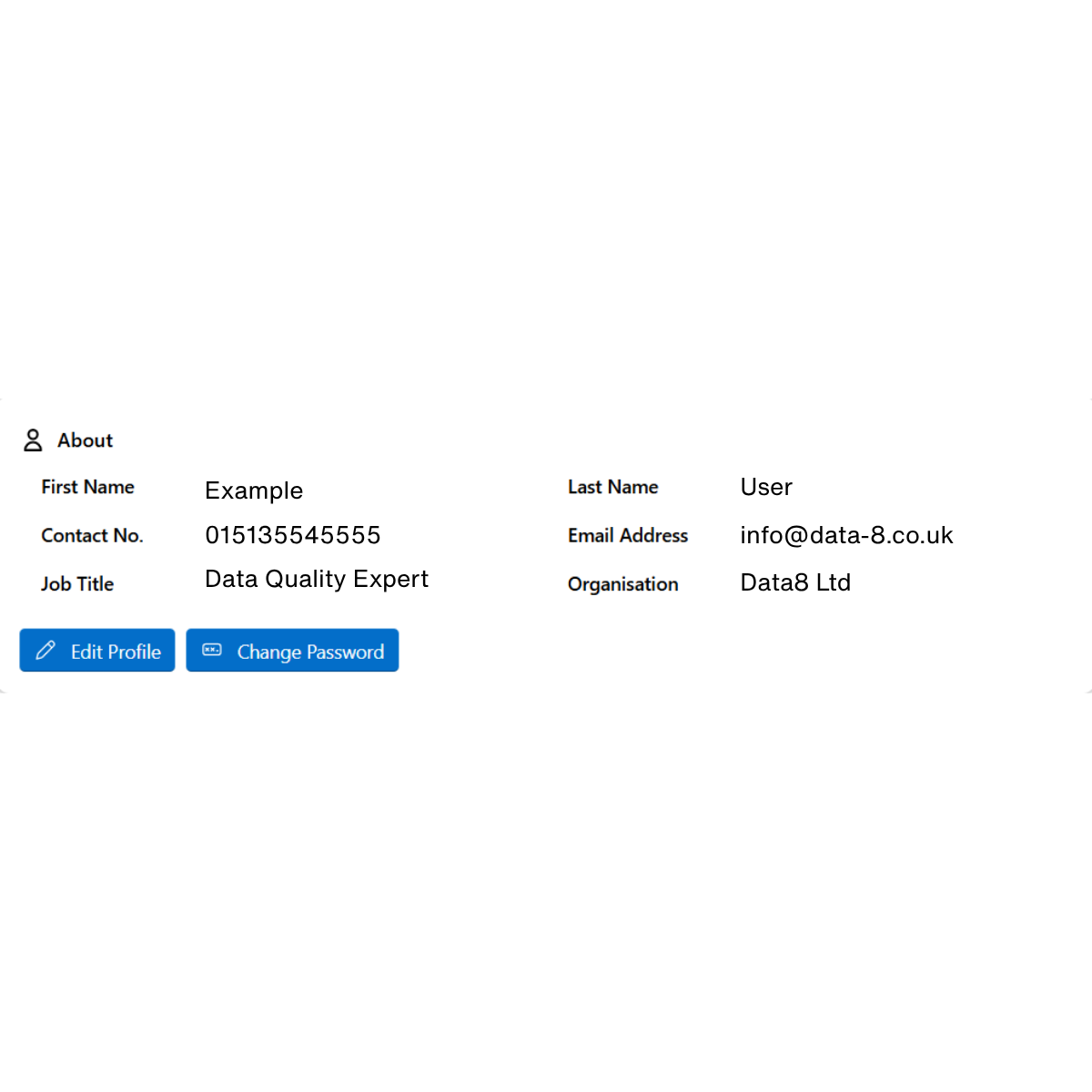
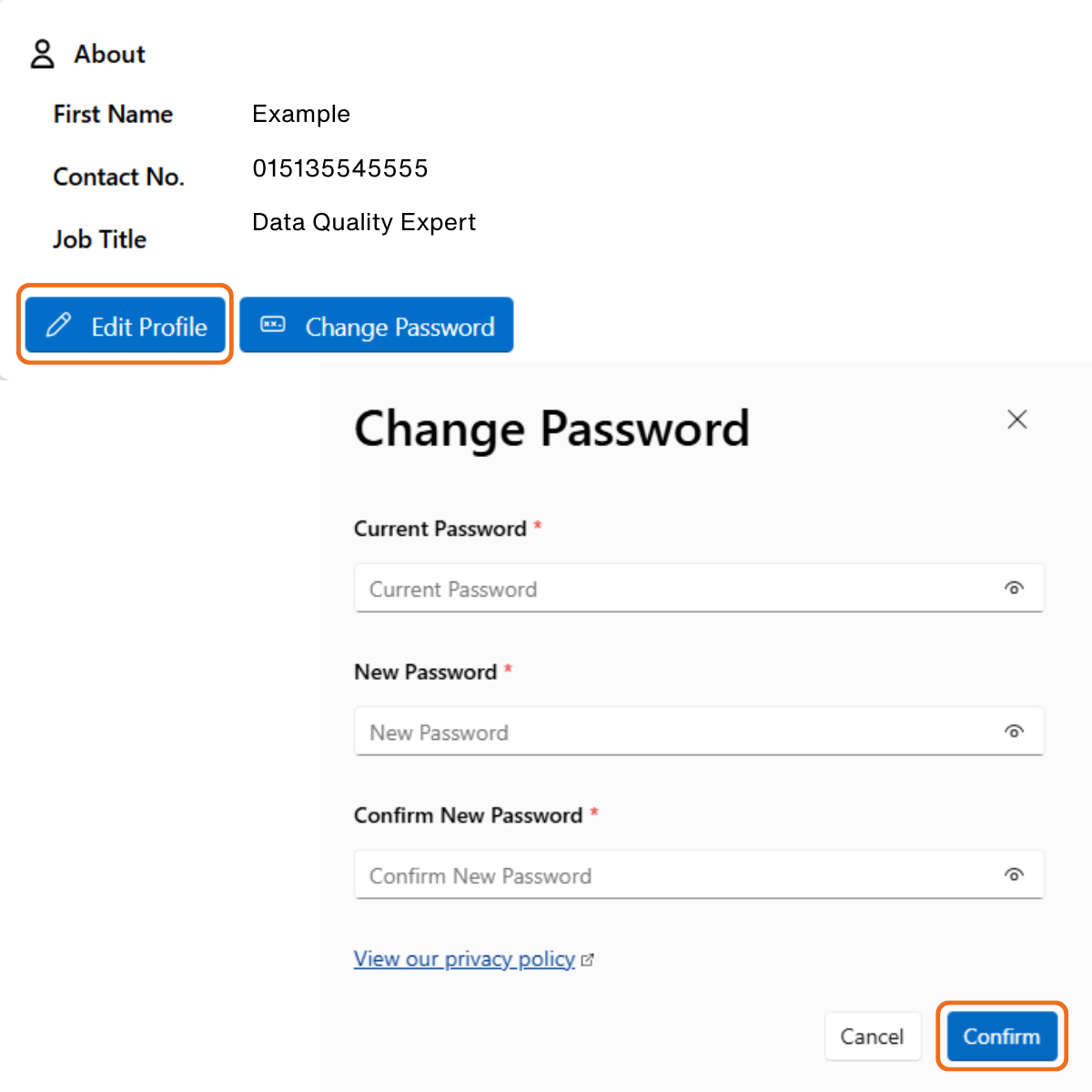
The About widget displays the following information:

  • Your first name
  • Your last name
  • Your phone number
  • Your email address
  • Your job title
  • Your organisation 


It also contains two buttons to edit your profile and change your password. 

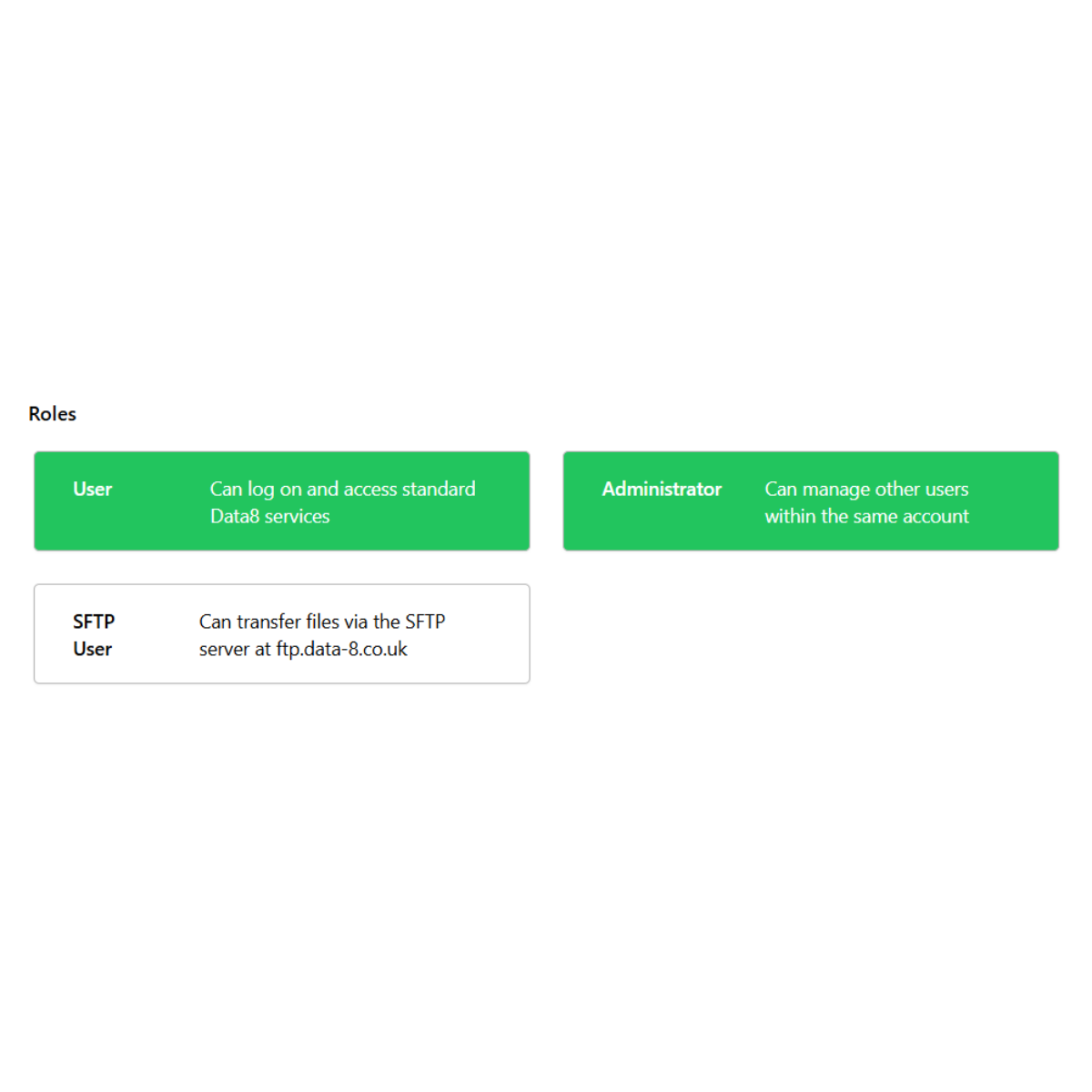
The Roles widget displays which roles have assigned to you:

  • Roles highlighted in green have been assigned to you
  • Roles in white have not been assigned to you 

Editing Your Profile

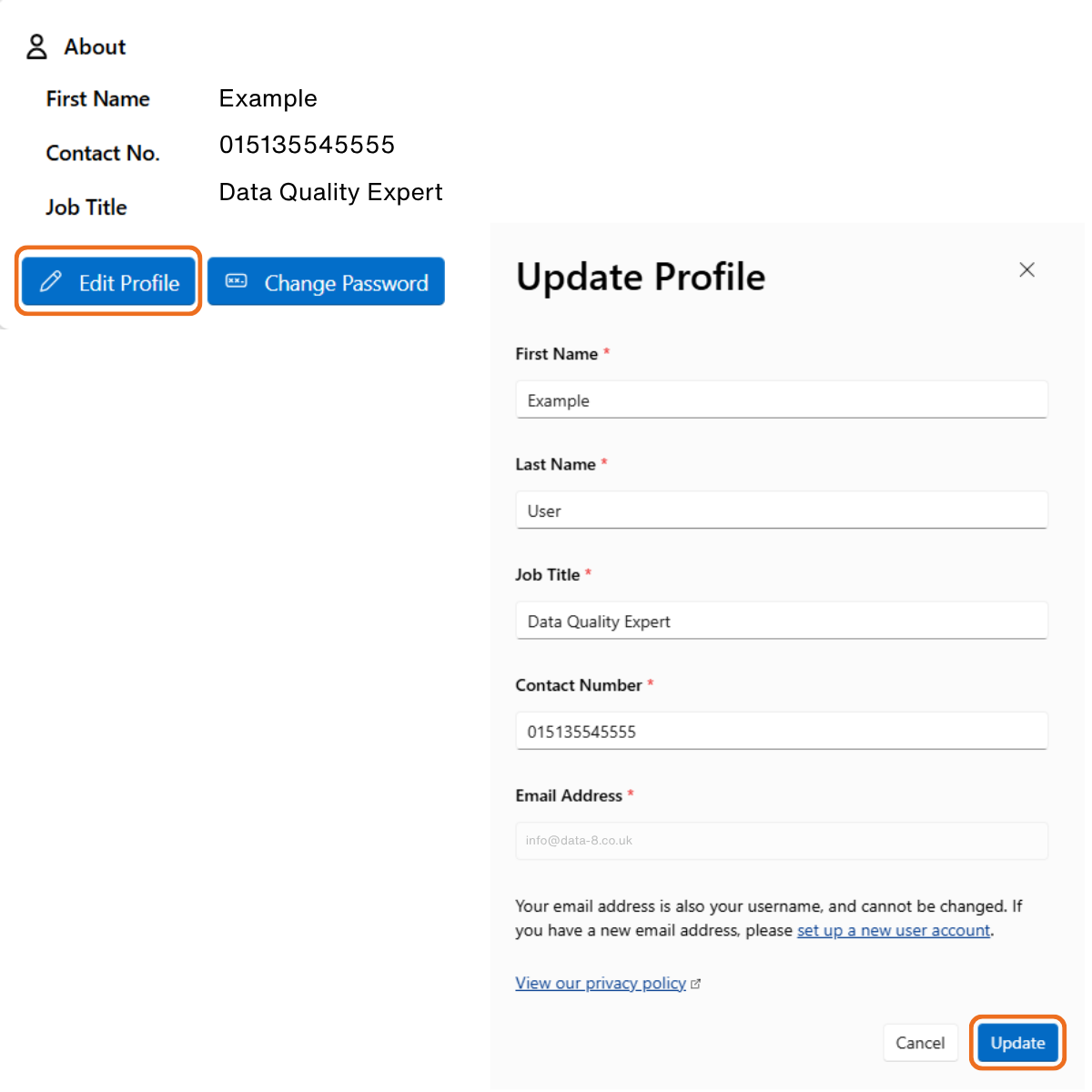
If you need to update any details within the About widget, click Edit Profile to open the Update Profile pop-up. 

To make a change simply type in the field(s) that needs updating, then click Update.

N.B: Your email address cannot be change due to it serving as your username. 

Changing Your Password

If you need to change your password, click Change Password in the About widget to open the Change Password pop-up. 

To change your password fill out each field, then click Update.

There is also a link to Data8’s privacy policy, which allows you to see how your data is stored and handled.


Join the Conversation

Receive the latest news, views and hot topics directly in your inbox! Sign up below

Follow us on social media

Data8
Privacy Overview

This website uses cookies so that we can provide you with the best user experience possible. Cookie information is stored in your browser and performs functions such as recognising you when you return to our website and helping our team to understand which sections of the website you find most interesting and useful.