
- 5 min read
- Updated: September 2026
Duplicare Update: Managing Large Numbers of Duplicate Records with Duplicare™
Matt Beard
Unlike native Dynamics 365 deduplication, Duplicare™ can identify hundreds of thousands of duplicate records in a single job. The harder question is what happens next: how do you review and merge that many records without it taking weeks?
Our latest Duplicare update gives you three ways to work through large duplicate backlogs quickly: Automerge, sorted results and owner-based assignment.
Quick answer
The fastest way to manage a large volume of duplicates in Dynamics 365 is to review a sample of results, then run a new Duplicare Dedupe+ Job with Automerge enabled. If you want to review merges manually, split the work by sorting results in opposite directions or by assigning duplicate groups to each master record owner.
Which option should you choose?
| Approach | Best for | Manual review needed? |
|---|---|---|
| Automerge | Very large jobs where your merge rules are well tested | Sample only |
| Sorted results | Small teams splitting one list between two people | Yes |
| Owner-based assignment | Larger teams where record owners know their data best | Yes |
Option 1: Merge duplicates automatically with Automerge
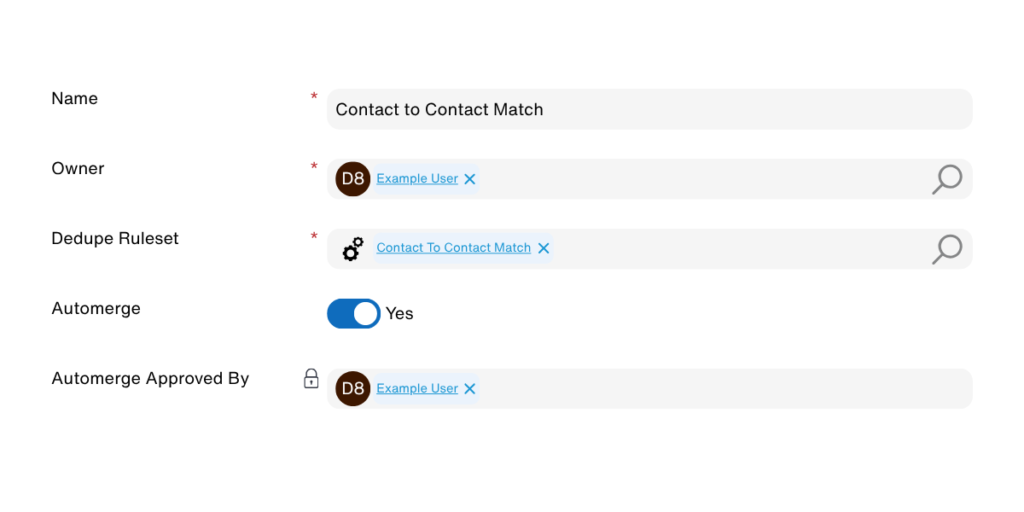
Automerge is the quickest route through a large job. Duplicare applies your merging rules automatically, with no further interaction required.
To use it:
- Run a Dedupe+ Job and manually review a sample of the results.
- Check the merges match what you would have chosen.
- Start a new job with the Automerge function enabled.
Option 2: Split the workload by sorting results
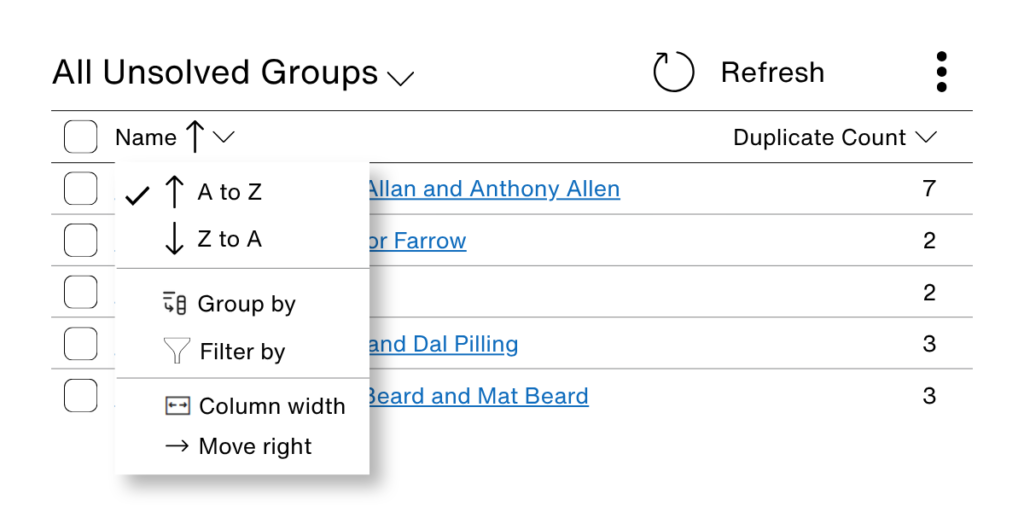
If you prefer to review and action merges yourself, you can now share the work between people. On the Dedupe+ Job results page you can sort the results, and that same order is kept when you click Resolve Duplicates. You work through the groups in the order you sorted them.
Tip: Two users can sort the results in opposite directions and work from each end towards the middle. Neither person works on the same records, so no effort is duplicated.
Option 3: Assign duplicates to the people who know the records best
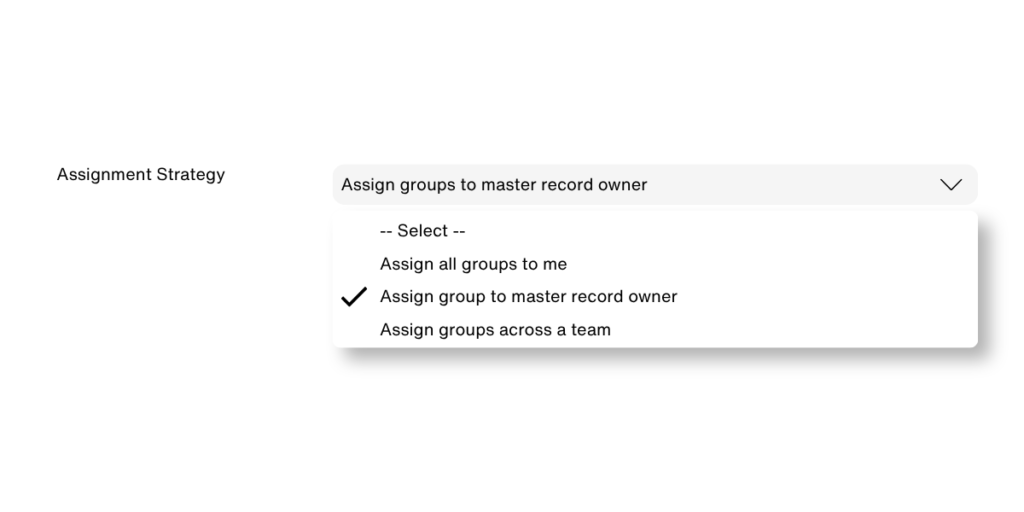
With a very large number of duplicates, it often makes sense for the users who know the records best to manage their own. Use the new Assignment Strategy option on the Dedupe+ Job and select Assign groups to master record owner.
Each user then gets a personalised list in the My Unsolved Groups view. Everyone works through their own duplicates, so there is no risk of two users trying to merge the same records at the same time.
Clear your duplicate backlog faster
Whether you automate the merges, split the list between colleagues or hand each group to its record owner, Duplicare helps you spread the workload and get through even very large numbers of duplicates.
Ready to try it? Start your free trial or book a demo to see the latest Duplicare update in action.
Duplicare™ FAQs
Can Duplicare™ merge duplicate records automatically in Dynamics 365?
Yes. After reviewing a sample of records manually, start a new Dedupe+ Job with Automerge enabled. Duplicare then applies your merging rules automatically.
How can several people work through duplicates without overlapping?
There are two ways. Users can sort the results in opposite directions and work from each end, or you can use the Assignment Strategy option, so each user only sees the groups for records they own.
Does the sort order carry through to Resolve Duplicates?
Continuously, not periodically. CRM data decays daily as people change jobs, companies merge and email domains die. A quarterly or annual clean-up is already out of date by the time an AI agent uses it.
Where do I find my assigned duplicates?
Open the My Unsolved Groups view. It lists the duplicate groups assigned to you as a master record owner.