
Home » Resources » How-to Guides » Business Central Installation Guide » Business Central Email and Telephone Validation Hub » Business Central Email and Telephone Validation Installation Guide » Business Central Email and Telephone Validation Prerequisites
Email and Telephone Validation: Prerequisites
Create a Data8 Account
You must have a Data8 account with access to the Email Validation and/or Phone Validation services. If you do not already have an account, you can register for a free trial online on our Portal website.
Obtaining an API key
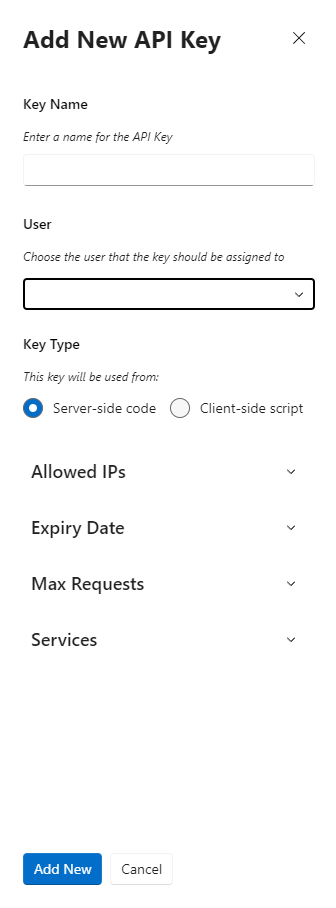
- Go to Portal > Development > API Keys and click “Add API Key”.
- Give the API key a friendly name.
- Select “Server-side code”.
- Store this key somewhere in the short term as this is your “Server Side” Key.
Installing the Solution
Note: If you installed the solution from the Marketplace then this step will have been completed for you.
You will have been provided with a zip file containing the solution. To install it:
- Open Business Central
- Ensure you’re in the right environment in the top right of the page
- Search for “Extension Management” using search tool at the top right.
- Click “Manage” and then “Upload Extension”.
- Select the .app file you have been sent.
- Enable the privacy policy acknowledgment.
- Click “Deploy”.
- The extension will begin to be installed – wait for it to complete.
- You can check the status of the installation by searching for “Extension Installation Status”.
Initial Configuration
Once installed, use the search tool to open the “Data8 Validation Configuration” page.

Enter your server-side API key.

Permissions
If you cannot access the Data8 Validation Configuration page or want to give someone access to this, the user will need the Data8Validation permission set applied.