
Home » Resources » How-to Guides » Salesforce Installation Guide » Salesforce User Guide
Salesforce User Guide
Welcome to the Salesforce user guide.
This guide explains how to set up and use the components in the Data8 Data Validation package for Salesforce Lightning.
If you have not yet installed the package, assigned the Data8 User permission set or added your API keys, follow our installation guide first and come back to this page once you’ve finished.
Contents of this guide:
Before you start: create your fields first
Data8’s components do not create any fields for you. Every field you enter in a component’s settings (your data fields, Validation Result fields, Last Validated fields and any optional extras) must already exist on your object before you set up the component.
The order is always the same: create the fields → add the component → enter the field API names → save, activate and set permissions → test.
Use the full API name. Salesforce adds __c to the end of every custom field’s API name, so a field created as Email_Validation_Result becomes Email_Validation_Result__c. The component needs the full name, including __c. If in doubt, copy it from Setup → Object Manager → your object → Fields & Relationships. Standard fields such as Email or MailingAddress don’t have __c.
Field types are a recommendation. Text or Text Area for a result and Date/Time for a “last validated” field always work. If you’d prefer to restrict the values, you can use a picklist based on one of the global value sets included in the package:
| Result field | Packaged global value set | Values |
|---|---|---|
| Email validation result | Email Validation Status | Valid, Invalid, Inconclusive, Catchall, Greylisted |
| Phone validation result | Phone Validation Status | Valid, Invalid, NoCoverage, Unavailable, Ambiguous |
| TPS result | TPS Status | Callable, On TPS, On CTPS |
| Bank validation result | Bank Validation Status | Valid, Invalid, Not Validated |
Make sure users have Read and Edit access to every field a component uses (through their profile or a permission set). If a component loads but nothing populates, missing field access is the most common cause.
The Settings page
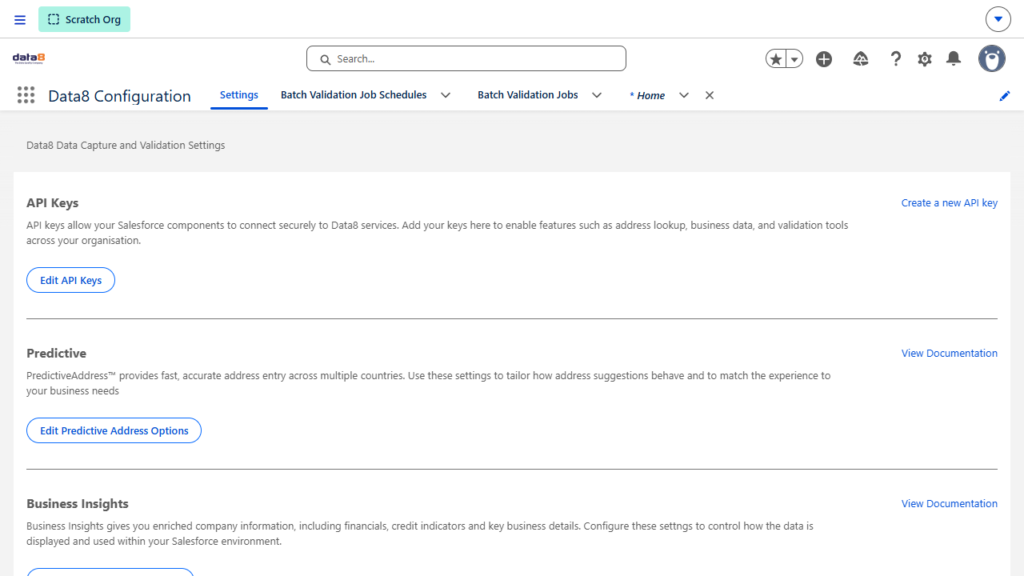
Organisation-wide options are on Data8 Configuration → Settings (open the App Launcher and search for “Data8”).
| Section | What it controls |
|---|---|
| API Keys | Your Client-Side API Key (used by the on-screen components) and Server-Side API Key (used by server-side processes and flows). Once a key is saved, a live credit balance is shown next to each service you subscribe to. |
| Predictive Address | How looked-up addresses are formatted: number of street lines, maximum line length, punctuation, county data type, town/county case, fix town/county, use any available county, include admin area, include Not Yet Built / Multiple Residency, use what3words location and Block Saving Unvalidated Addresses. |
| Business Insights | Maximum years of financial history to retrieve, and whether non-limited companies are included in searches. |
| Branding | Show “Powered by Data8” branding next to the edit icon on the Email, Phone and PredictiveAddress components. On by default. |
Which services are enabled for your organisation (Email Validation, Telephone Validation, TPS, CTPS, Bank Account Validation, PredictiveAddress, Business Insights and so on) depends on your Data8 subscription. If a component loads but never returns a result, the service may not be enabled for your account yet, or you may have run out of credits.
Email Validation
The Data8 Email Validation component checks a single email field, shows the result inline and can write the result and extra details back to the record. Add one component for each email field you want to check.
Fields
| Field | Type | Example API name | Required? |
|---|---|---|---|
| Email (existing field) | Yes | ||
| Email Validation Result | Text / Text Area | Email_Validation_Result__c | Recommended |
| Email Last Validated | Date/Time | Email_Validation_Last_Checked__c | Recommended |
| Deliverability | Text | Email_Deliverability__c | Optional |
| Reason | Text Area (Long) | Email_Validation_Reason__c | Optional |
| Suggested Email | Text / Email | Email_Suggested_Address__c | Optional |
- Deliverability stores the email type: Personal, ISP, Free, Generic or Disposable.
- Reason stores Data8’s explanation of the result.
- Suggested Email stores a suggested correction when the address looks like a typo (for example, a misspelled domain).
Adding the component
- Open a record, click the gear icon and choose Edit Page.
- Drag Data8 Email Validation onto the page.
- Enter the field API names: Email Field Name, and optionally Card Title, Validation Result Field Name, Last Validated Field Name, Deliverability Field Name, Reason Field Name and Suggested Email Field Name.
- Save and activate the page.
Using it
- The email address is checked as soon as the user leaves the field, not only when the record is saved. A green or red indicator shows whether it is valid.
- If Data8 suggests a correction, a “use this address” option appears. Clicking it swaps in the suggestion and checks it again.
- On a record page the component has Edit, Save and Cancel buttons. Saving runs a final check if one hasn’t happened yet, then writes every mapped field.
- How thorough the check is follows your organisation’s Email Validation Level.
Phone Validation and TPS/CTPS screening
The Data8 Phone Validation component checks and formats a phone number, and can screen it against the Telephone Preference Service (TPS) and Corporate TPS (CTPS) registers. Add one component for each phone field (Phone, MobilePhone, a custom field and so on).
Fields
| Field | Type | Example API name | Required? |
|---|---|---|---|
| Phone (existing field) | Phone | Phone | Yes |
| Phone Validation Result | Text / Text Area | Phone_Validation_Result__c | Recommended |
| Phone Last Validated | Date/Time | Phone_Validation_Last_Checked__c | Recommended |
| Phone TPS Result | Text / Text Area | Phone_TPS_Result__c | TPS only |
| Phone Last TPS Check | Date/Time | Phone_TPS_Last_Checked__c | TPS only |
Adding the component
- Open a record, click the gear icon and choose Edit Page.
- Drag Data8 Phone Validation onto the page.
- Enter the Phone Field Name and any result fields you created. Default Country is an optional ISO2 code (for example GB, US or IE) used to read numbers entered without an international dialling code; leave it blank to detect the user’s country from their IP address.
- Use Enable Validation and Enable TPS Screening (both on by default) to choose which checks run.
- Save and activate the page.
Using it
- The number is checked as soon as the user leaves the field. If it is valid, the component replaces what was typed with the correctly formatted number.
- The validation result is Valid, Invalid or No Coverage.
- If the number is valid and TPS screening is on, the component runs a TPS check and, if the number is callable, a CTPS check. The TPS result is Callable, On TPS or On CTPS.
- If a number comes back Invalid, any previous TPS result on the form is cleared.
- Checks for services that aren’t on your subscription are skipped.
PredictiveAddress (address lookup)
PredictiveAddress is an international address capture service that speeds up address entry and reduces mistakes through type-ahead search. The Data8 PredictiveAddress component fills the selected address into your record automatically.
Fields
You need an existing compound address field, such as MailingAddress on Contact or Lead, OtherAddress, or a custom address field. The component fills its street, city, state, postcode and country parts, and latitude/longitude if the field has them. These fields are optional:
| Field | Type | Example API name |
|---|---|---|
| Address Validation Result | Text / Text Area | Address_Validation_Result__c |
| Address Last Validated | Date/Time | Address_Validation_Last_Checked__c |
| UDPRN (Royal Mail reference) | Text | UDPRN__c |
| DPS (used with UDPRN) | Text | DPS__c |
| UPRN (Ordnance Survey reference) | Text | UPRN__c |
| Organisation name | Text | Organisation__c |
| Checked Address (re-validation tracking) | Text (about 20 characters) | Address_Checked_Key__c |
Map either UDPRN or UPRN, not both. Data8 returns only one property reference per address, so the component shows a configuration error if both are mapped.
Adding the component
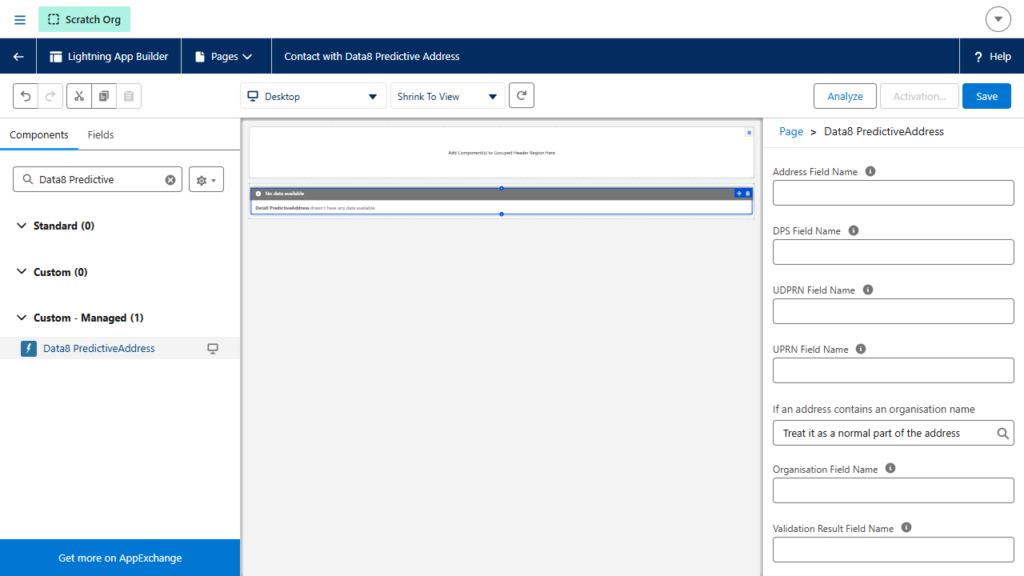
- Open a record, click the gear icon and choose Edit Page.
- Drag Data8 PredictiveAddress onto the page.
- Enter the Address Field Name (for example
MailingAddress) and the API names of any optional fields you created. - Choose what happens if an address contains an organisation name: Treat it as a normal part of the address (default), Ignore it, or Place it in a separate field (written to your Organisation field and removed from the street).
- Save and activate the page.
Using it
- Click in the search box and start typing an address. This can be part of an address such as a house name or street, a postcode, or a what3words address (word.word.word).
- As you type, suggestions appear. Selecting a suggestion that contains several addresses (such as a street) narrows the search; selecting a single address retrieves its full details.
- Country and state are handled automatically. If State and Country/Territory Picklists are enabled in your organisation, the component uses your organisation’s values and filters states by country. If not, it uses Data8’s country list, pre-selects the country detected from the user’s IP address and fills State as free text.
- A Clear button appears when the address has content. It empties every address part and resets the validation status.
- If Block Saving Unvalidated Addresses is on in Settings, the record can’t be saved (and a required Flow screen won’t advance) unless the address was confirmed by a lookup. A manually typed address is marked Invalid.
Re-validation when an address changes elsewhere
A confirmed address can later be changed without going through the lookup, for example by editing the standard address field, a Data Loader import or another flow. To make sure the validation status stays accurate, map the optional Checked Address field:
- After a successful lookup, the component saves a short fingerprint of the confirmed address in the Checked Address field.
- When the record next loads, the component compares the current address with that fingerprint. If they don’t match, it clears the Validation Result and Last Validated fields so the record shows as not validated until it is looked up again.
- Manual edits made before the page is reloaded are detected too.
Without this field mapped, an address edited elsewhere keeps its old “Valid” status until it is looked up again. Users never need to see this field, so you can leave it off the page layout.
Bank Account Validation
The Data8 Bank Account Validation component checks a UK sort code and account number and can return extra bank and branch details. It works on record pages and in Screen Flows.
Fields
| Field | Type | Example API name | Required? |
|---|---|---|---|
| Sort Code (existing) | Text | Sort_Code__c | Yes |
| Account Number (existing) | Text | Bank_Account_Number__c | Yes |
| Bank Validation Result | Text / Text Area | Bank_Account_Validation_Result__c | Yes (record page) |
| Bank Last Validated | Date/Time | Bank_Account_Validation_Last_Checked__c | Yes (record page) |
You can also create optional fields for any extra details you want stored: BIC/SWIFT code, IBAN, branch name, short and full bank name, branch address (a compound address field), and checkboxes for each payment type the account accepts (BACS, Direct Debit, Direct Credit, Unpaid Cheque Claim, Building Society Credit, Dividend/Interest, Direct Debit Instruction, CHAPS, Cheques and Faster Payments).
Adding and using the component
- Drag Data8 Bank Account Validation onto the record page.
- Enter the Sort Code, Bank Account Number, Validation Result and Last Validated field names, plus any optional fields.
- Save and activate the page, then enter a sort code and account number and save the record to test it.
The result is Valid, Invalid or Not Validated (the account details are well-formed, but no validation rules are published for that sort code). Changing the sort code or account number clears the result and all returned details until the account is checked again.
Business Insights
The Data8 Business Insights component searches UK businesses and links a verified company to your record. The company’s data (financials, credit rating and limit, CCJs, mortgages, SIC codes, turnover, employee numbers and more) is stored in the Company object included in the package.
Fields
| Field | Type | Example API name |
|---|---|---|
| Company Lookup | Lookup → Company | Company__c |
| Company Number (optional) | Text | Company_Number__c |
Adding and using the component
- Drag Data8 Business Insights onto the record page.
- Set Company Field Name to your lookup field and, optionally, Company Number Field Name.
- Save and activate the page, and make sure users can read and edit the lookup field and access the Company object.
- On a record, search for a company, select the right one and save. The lookup is filled in and the Company record is created or updated with the latest data.
Refreshing company data
- Add the Data8 Business Insights Refresh quick action to the record page (or the Company page). Running it retrieves the latest data for the linked company and shows a confirmation message.
- Alternatively, tick Refresh Now on the Company record.
How many years of history are retrieved, and whether non-limited companies appear in searches, are set on the Settings page.
Using the components in a Screen Flow
Each validation component can also be used in a Screen Flow instead of a record page. This is useful for guided processes, such as a “new customer” wizard, where the record doesn’t exist yet.
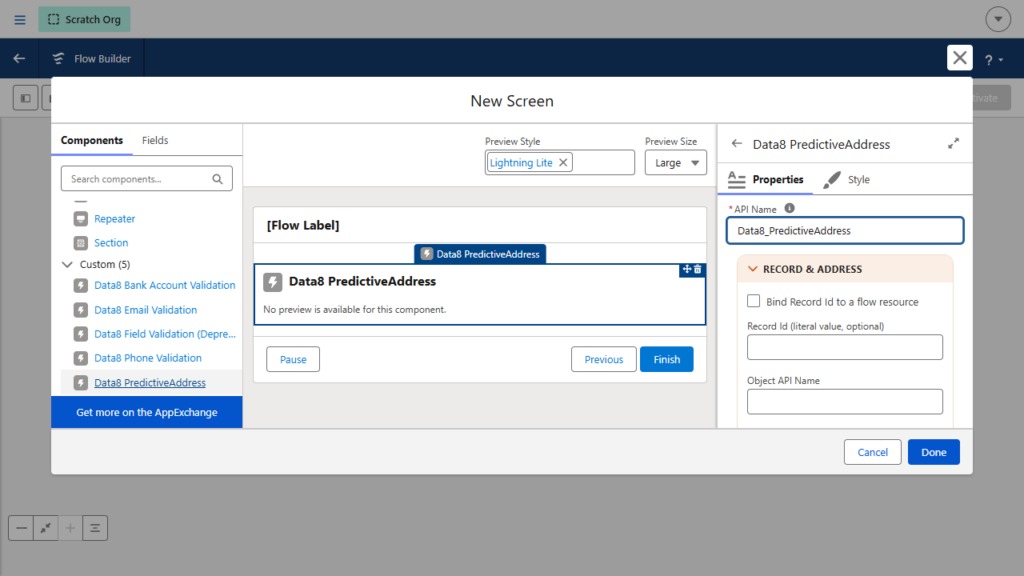
- Go to Setup → Flows, create a Screen Flow and add a Screen element.
- In the screen’s component list, select the Data8 component you want (they are listed under Custom).
- Configure it. The Record & … section holds the settings you’ll need on almost every screen; the Advanced section holds optional field mappings.
- After the screen, add an Update Records (existing record) or Create Records (new record) element and map the component’s outputs to your fields.
- Save and activate the flow.
In the Record & … section:
- Bind Record Id to a flow resource: tick to use a flow variable such as
recordId. - Record Id: leave blank when the flow is creating a new record.
- Object API Name: required when Record Id is blank (for example
Lead). - The field name for the component (for example Email Field Name, Phone Field Name or Address Field Name), plus any component-specific options such as Default Country, Enable TPS Screening or organisation name handling.
- PredictiveAddress also has a Required option, which stops the screen from advancing until a complete address has been looked up.
On a flow screen, the components show an always-editable form without their own Edit/Save/Cancel buttons and don’t write to the record themselves. The values the user enters and the results of each check are captured automatically, so you only need to map them in your Update Records or Create Records element.
Bank Account Validation uses a simpler list of properties: set the Object Name, Sort Code Field Name and Bank Account Number Field Name, then map the returned result and bank details in your Update or Create Records element.
Troubleshooting
| Problem | Likely cause |
|---|---|
| Nothing saves, or boxes look empty | The field doesn’t exist yet, or the API name was entered incorrectly (for example, missing __c). Check it in Object Manager. |
| Component shows but nothing populates | The user doesn’t have Read/Edit access to the fields. |
| Red “Unable to reach Data8 service” message | https://webservices.data-8.co.uk is missing or inactive in Remote Site Settings and CSP Trusted Sites (both named Data8). |
| “This service is unavailable” (HTTP 403) | The API key is wrong, or the service isn’t on your subscription. |
| Email or phone check never runs | The service isn’t enabled for your organisation, you’re out of credits, or Enable Validation / Enable TPS Screening is turned off. |
| Configuration error on PredictiveAddress | Both UDPRN and UPRN are mapped (remove one), or an Organisation field is mapped while organisation handling is set to “Ignore it”. |
| Address parts don’t fill in | The component isn’t pointing at a compound address field. |
| Address won’t save | Block Saving Unvalidated Addresses is on and the address wasn’t looked up. |
| Address edited elsewhere still shows “Valid” | The Checked Address field isn’t mapped. Map it to detect changes made outside the component. |
| Data8 components don’t appear in Lightning App Builder or Flow Builder | Check the package installed successfully (Setup → Installed Packages) and that the user has the Data8 User permission set. |
If you still need help, please contact our support team.